๐Ÿ“ธ Product photos

A phone snapshot goes in.
A studio shot comes out.

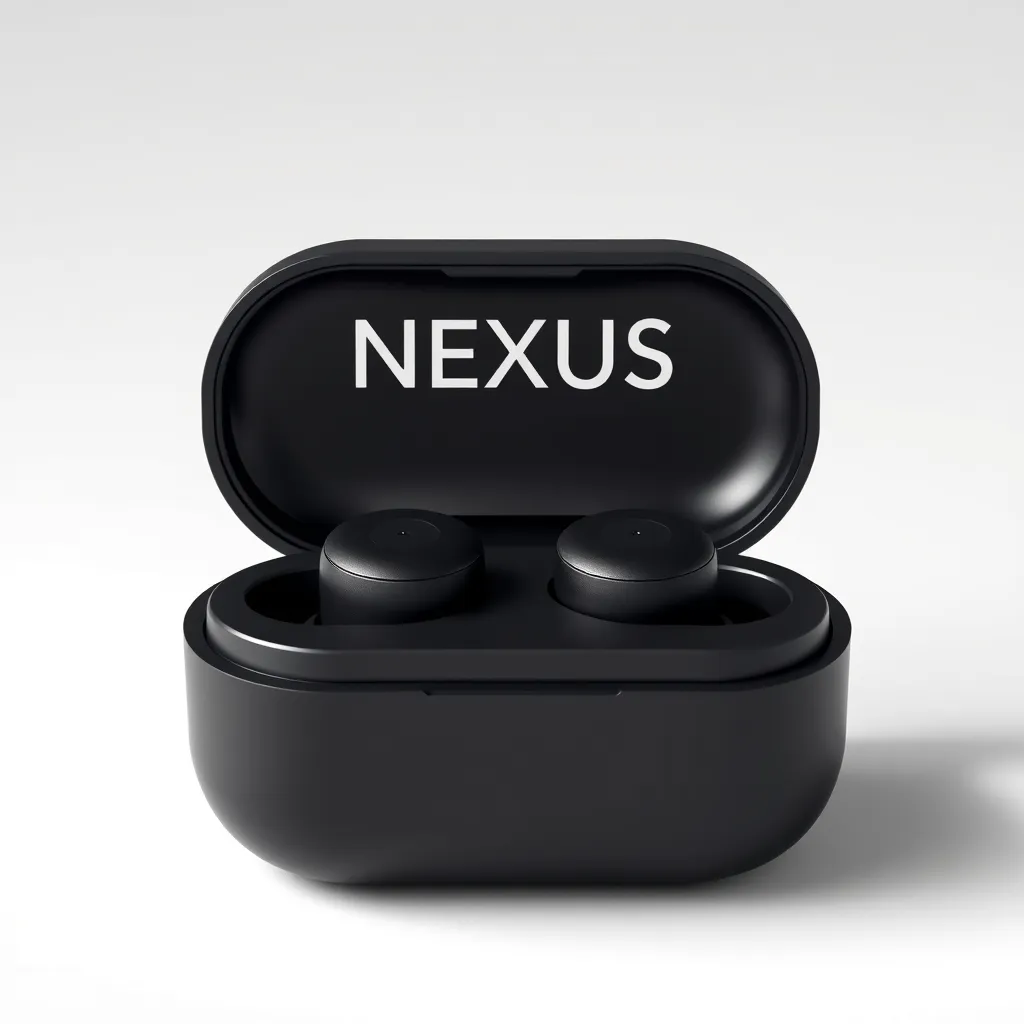
The same product, with no photographer and no studio: the background comes off in one click with accurate edges, and then you choose where it stands โ€” on marble, inside fire, out in nature, or on a clean background for your store.

A scene for every category ยท Every aspect ratio ยท Saved straight to your library

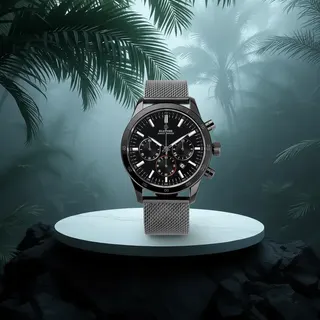
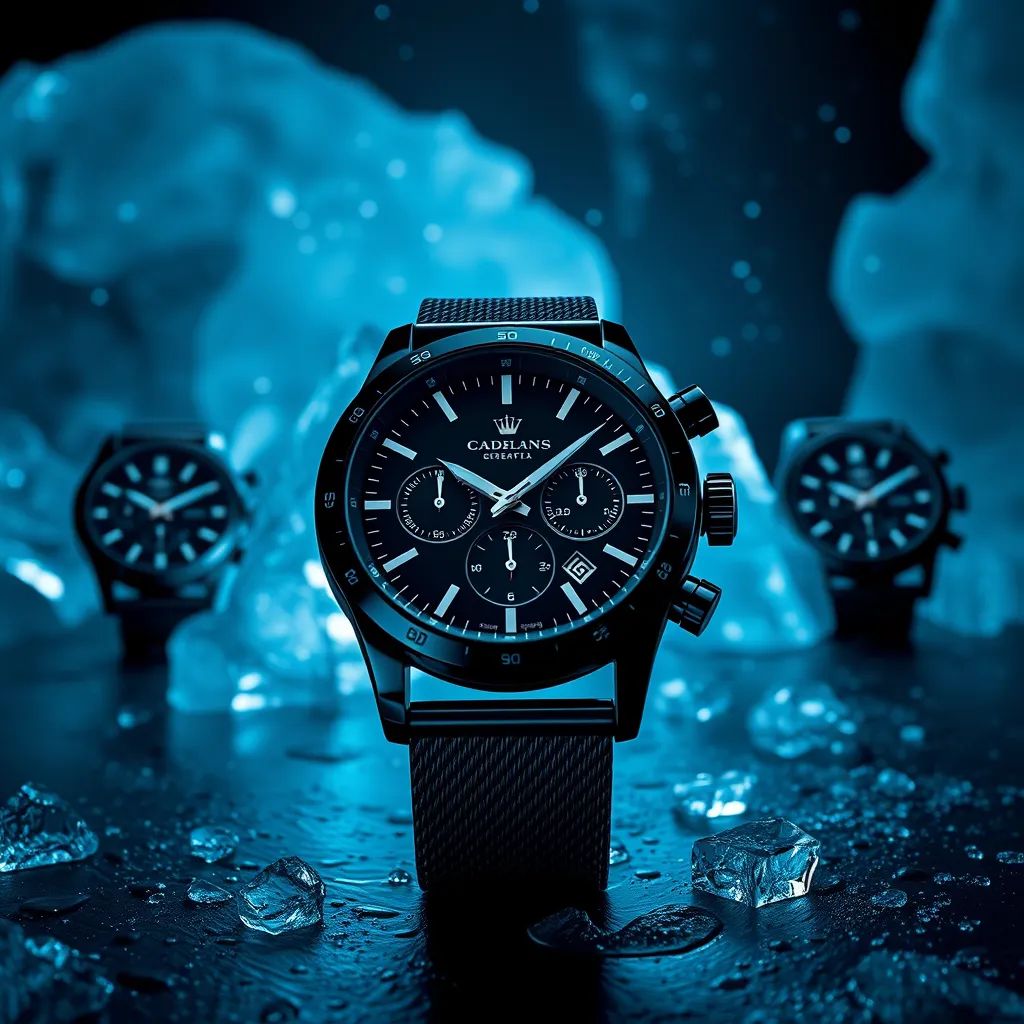
The same watch on three designed backgrounds
Dozensready scenes
One clickto remove the background
Every ratiosquare, vertical, story
Librarysaved automatically
Step one

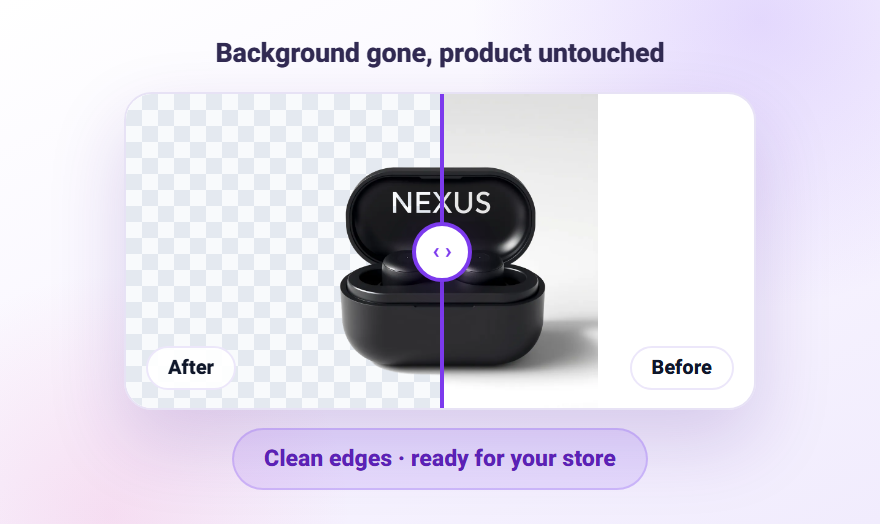
First, the background goes

Most small-business photos look worse because of the background, not the product. The table, the cables, the room. That comes off in a single click.

Accurate edges, no white halo

The product comes out clean with real transparency โ€” ready for an online store, a catalogue, a deck or an ad. No Photoshop, and no sending it to a designer for one image.

  • Real transparency, usable anywhere
  • Fits a store, a catalogue and ads
  • Saved to your media library immediately
A product before and after background removal

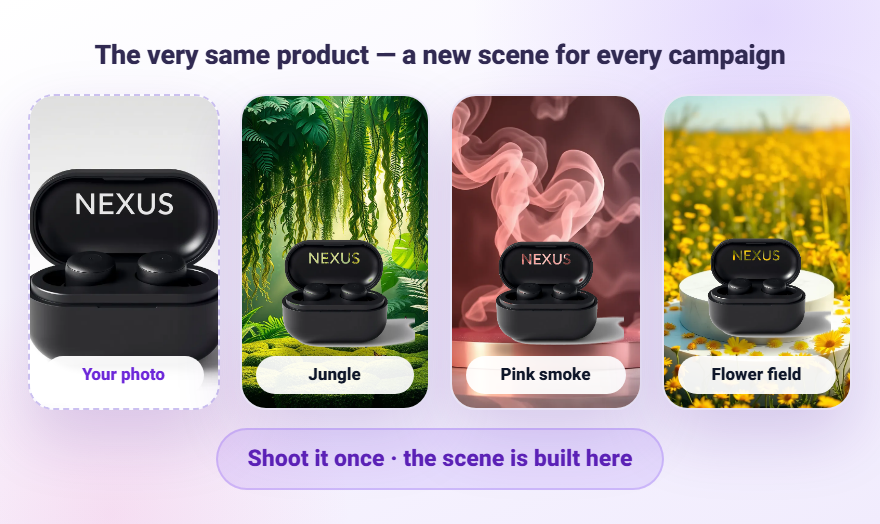
Then you choose where it stands

A minimalist podium, marble, beach, nature, fire, ice or a clean studio โ€” the library covers skincare, fashion, electronics and food. The exact same product gets a different look for every campaign, without reshooting it.

  • Dozens of ready scenes for every product type
  • The same product, a different look per campaign
  • Lighting and shadows that read as real
Choose a scene
Fire
Fire
Nature
Nature
Ice
Ice
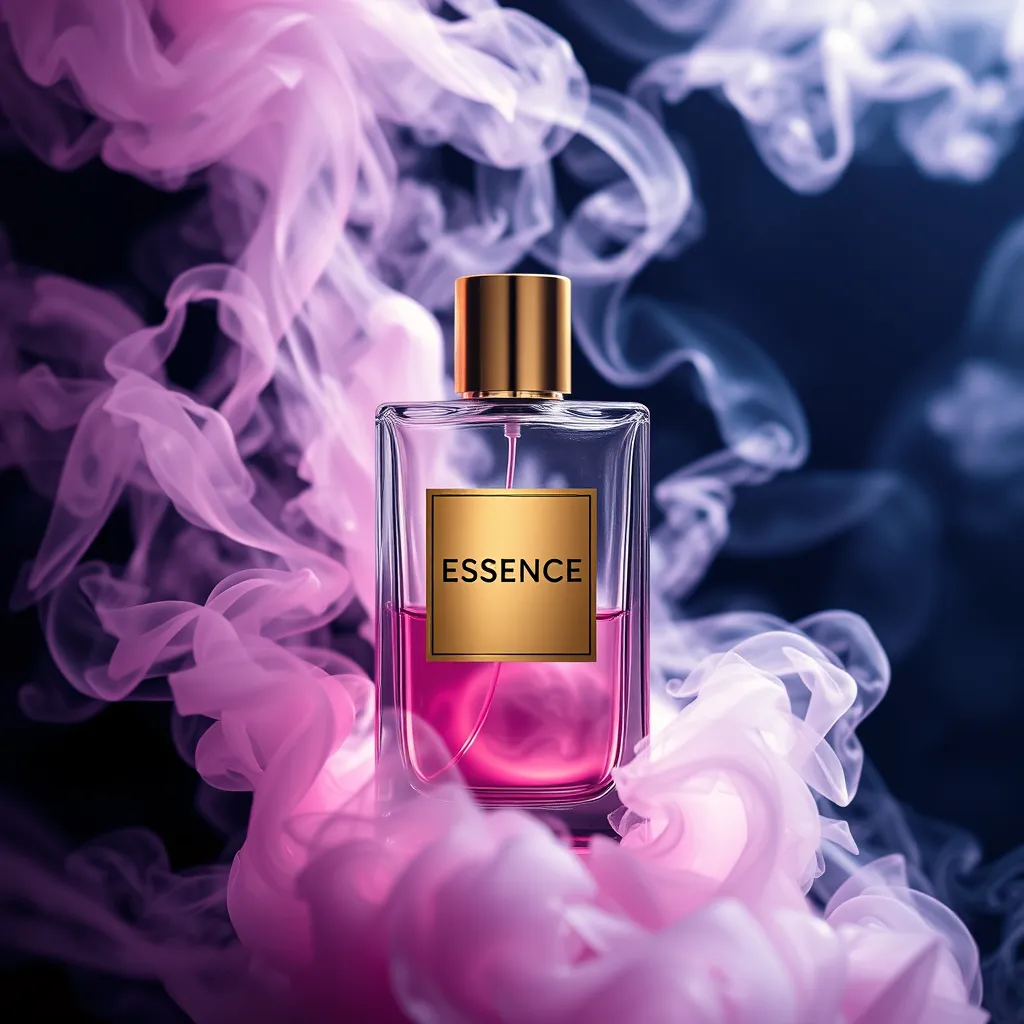
Smoke
Smoke
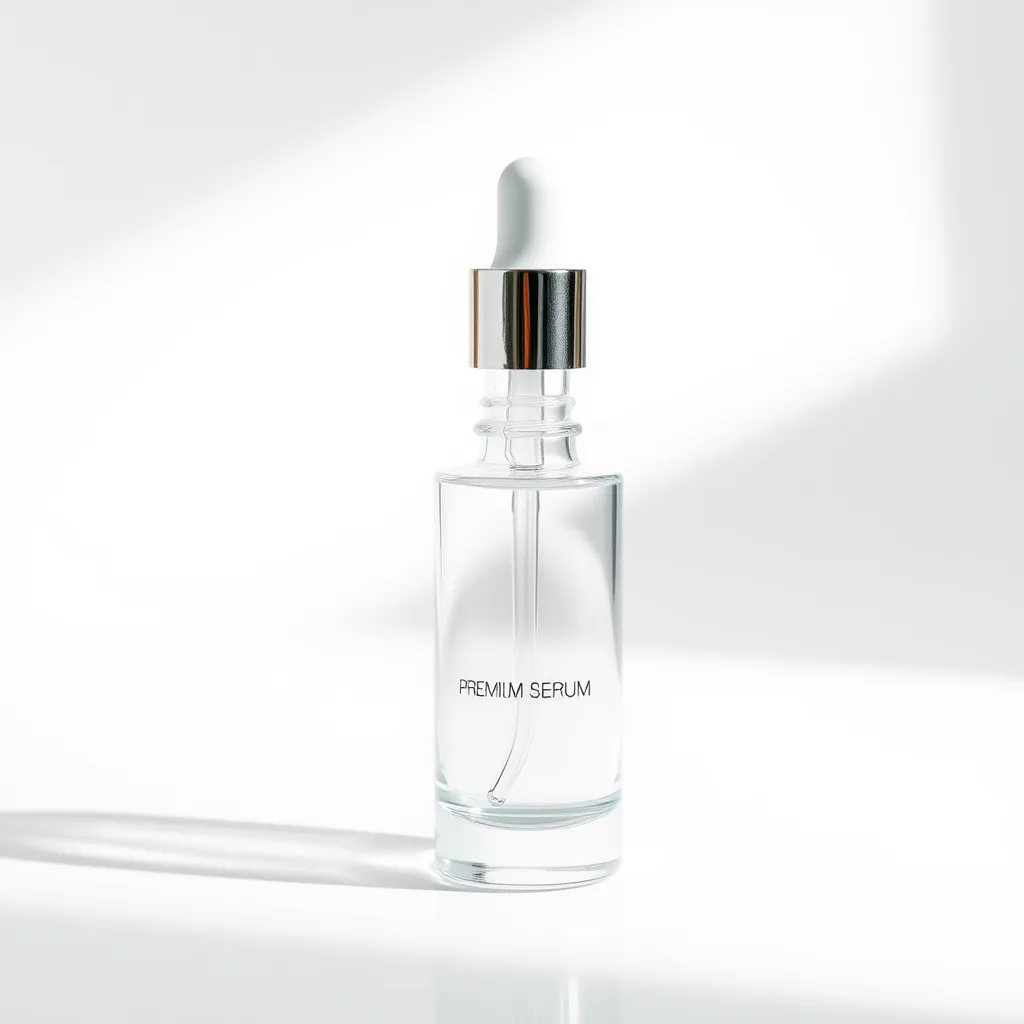
Studio
Studio
Clean background
Clean

And from there straight into an ad or a carousel

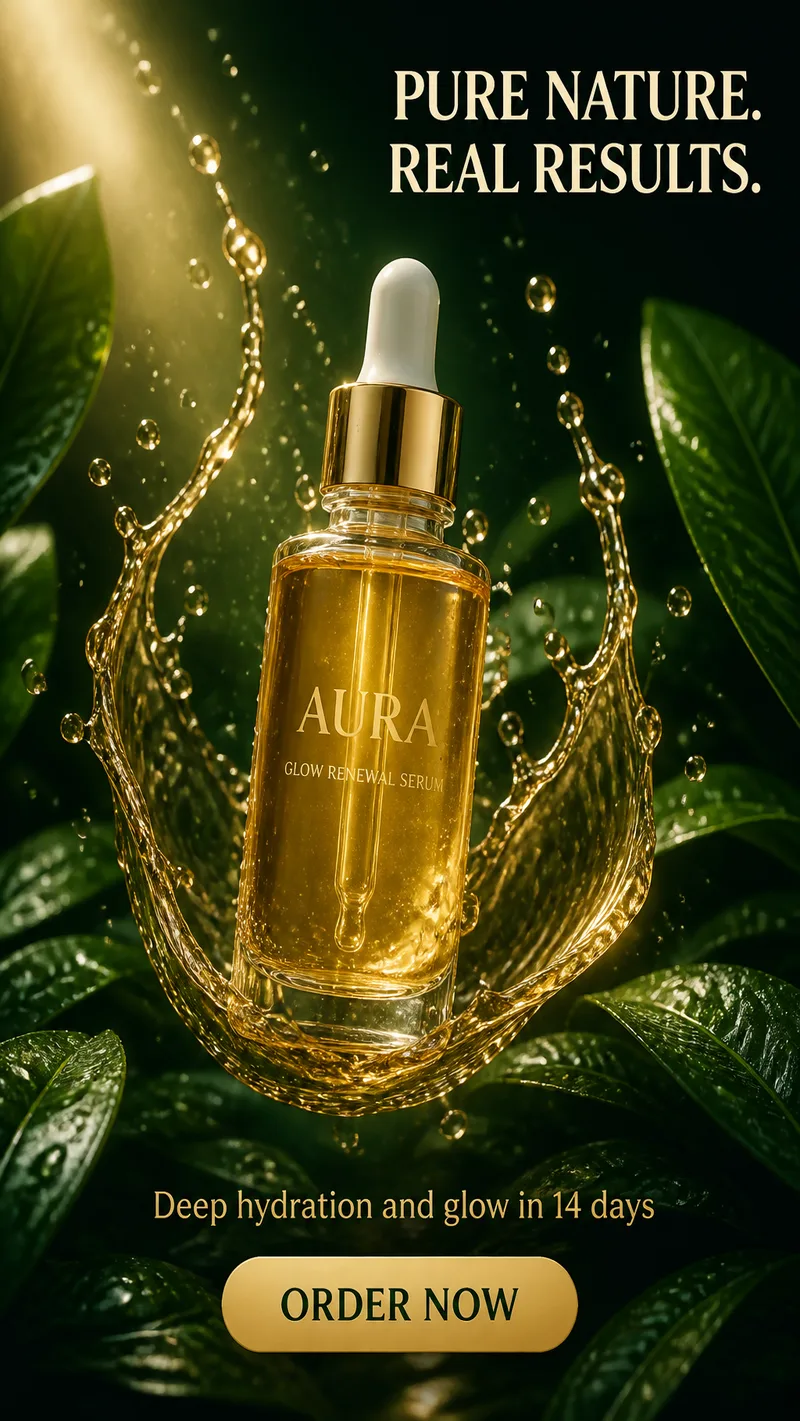
The image does not sit in a folder. It is immediately available for building an ad, an Instagram carousel or a direct post to your networks โ€” carrying the brand colours you set.

  • Drop it into an ad or carousel in one click
  • An aspect ratio for every network
  • Publish directly to Facebook and Instagram
A product photo inside a finished ad
How it works

Three steps, no equipment

1

Shoot it on your phone

Decent light and a simple background is all it takes. An existing photo from your site works too.

2

Remove the background, pick a scene

The product is cut out, and you choose what it stands on.

3

Download or publish

Straight to your store, catalogue or an ad โ€” the image is already saved in your library.

Before you upload

Four things that decide how good the result is

Background removal works on the contrast between product and background and on how sharp the edge is. These four matter more than anything else, and all of them are in your hands while shooting.

Sharp edges โ€” turn portrait mode off

Portrait mode blurs the background and computes an approximate edge around the product. That edge is almost always wrong on fine detail, so the cut-out will either eat part of the product or leave a halo. Turn it off, and turn off night mode too โ€” a long exposure creates a subtle blur you cannot see on the phone screen but can see very clearly on a product page.

A background that contrasts with the product

A white product on a white background is the hardest case there is, because there is no clear boundary to find. If the product is light, shoot it on mid-grey or something darker instead. Move it a few centimetres off the wall as well, so its shadow does not fall onto the background and blend into it.

Soft light from the side, not the front

Indirect window light at roughly 45 degrees defines the shape of the product and gives it volume. Direct light from the front flattens it completely and the result looks like a scan. Do not shoot in direct sun, and do not mix daylight with a warm bulb โ€” two light colours in one photo produce that familiar yellow cast.

Glossy and transparent products

Glass, polished metal and clear plastic reflect everything around them, including you. The fix is to make the light source bigger and softer โ€” a thin white sheet over the window โ€” and to back off with the phone. These are also the products that sometimes need a second attempt, and for complex edges like fur or mesh a dark, even background works better.

FAQ

What to know

What kind of photo should I upload?
A sharp one, in decent light, with the product centred and ideally on a relatively clean background. The cleaner the source, the more accurate the result.
Does it work on every kind of product?
Best on physical products with clear outlines โ€” bottles, skincare, electronics, jewellery, packaging. Transparent or furry products sometimes need a second attempt.
Can the photo have people in it?
For background removal, yes. For generating designed scenes it is better to stay with the product itself; the results there are far more consistent.
What size and aspect ratio should I export?
Square 1:1 is the default for an online store product page and for search results. For an Instagram post 4:5 takes more height in the feed, and for Stories and Reels 9:16. You can export every ratio from the same image without reshooting.
How many photos does each product need?
Four is the practical minimum: a clean main shot from the front, an angle, a close-up of a detail or texture, and one that shows scale or use. That last one saves the most returns on small products, because misjudging the dimensions is the single most common reason people send things back.
Can I use an existing photo from my site?
Yes. Any existing image works, including an old catalogue shot or one that has already been edited. If it was saved at a very small size the result will be less sharp, so upload the original at full size where you can.
Do my photos stay mine?
Yes. Everything you upload or create is kept in your private media library, and you can delete it at any moment.
Ready to start?

Create your account and run this on your own business โ€” no designer, no photographer, no developer.

Instagram carousels Video studio Ads & publishing Competitor research Website builder